Student Guide
Dashboard & Exams
The student dashboard is your home base for tracking progress, viewing upcoming exams, and accessing learning features.
Who can access this? Student
Dashboard
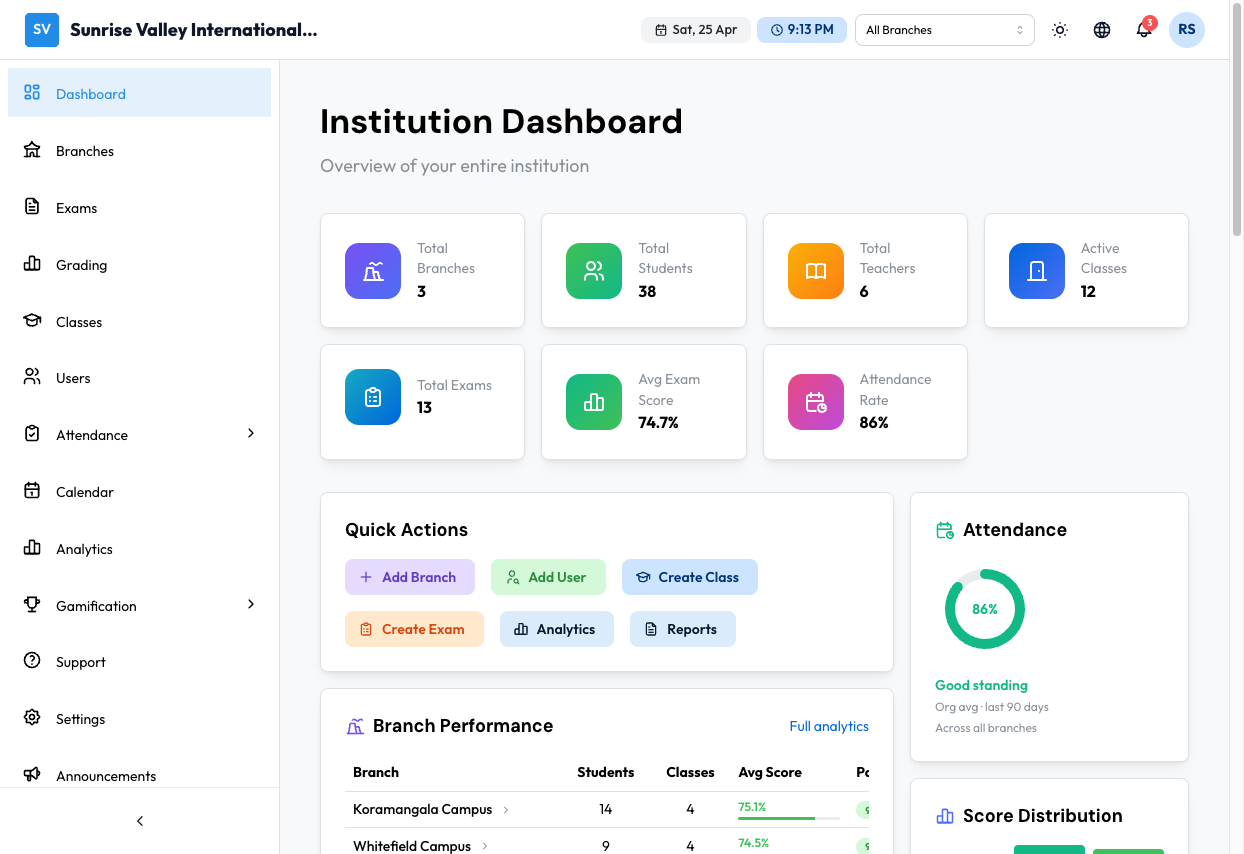
Your dashboard shows:
Stats Cards:
- Day Streak — How many consecutive days you have been active
- Avg Score — Your average score across graded exams
- Completed — Number of exams you have completed
- Class Rank — Your standing compared to classmates
Today's Schedule:
- Your class periods for today with subject, class, room, and time
- Current period highlighted with a "Now" badge
- Next period highlighted with a "Next" badge
Upcoming Assignments:
- Assigned tasks with due dates and class info
- Click View All to see all assignments
Upcoming Exams:
- Exams available to take with question count, duration, and status
- Click Start Exam to begin an available exam
- Click View All to see all exams
Recent Results:
- Your last completed exams with scores and progress bars
- Click View Details for full breakdown
Subject Performance:
- Bar chart showing your scores across subjects (Mathematics, English, Biology, Chemistry, Geography, etc.)
Attendance:
- This month's attendance percentage and present days count
My Progress:
- XP points and level from gamification
- Day streak count
- Recent badges earned
Recent Announcements:
- Latest announcements from your school with priority badges
Upcoming Holidays:
- Next upcoming holiday with date
Navigation
From the sidebar, students can access:
- Dashboard — Home overview
- Exams — View and take assigned exams
- Test Series — Access test series
- Attendance — View attendance records
- My Report Cards — View report cards
- Calendar — View academic calendar
- Analytics — View performance data
- Notifications — View your notifications
- Gamification — View achievements, leaderboards, and points
Viewing Exams
Go to Exams from the sidebar to see all your exams.
The page shows:
- Search by title or subject
- Sort by date, title, or score
- Filter tabs: All, Available, Upcoming, Completed
- Exam cards with status badges, subject, duration, difficulty, and action buttons
Exam Statuses
- Available — You can start this exam now
- Upcoming — Exam is scheduled for a future date
- In Progress — You started but haven't submitted yet
- Completed — You have submitted this exam
Taking an Exam
Before Starting
Click on an exam to see its details page:
- Subject, teacher, duration, question count, difficulty, total marks
- Number of attempts used and remaining
- Instructions on how the exam works
- If proctoring is enabled, a warning about camera/screen monitoring
Click Start Exam when ready. A confirmation dialog asks you to confirm readiness.
During the Exam
- Timer at the top shows remaining time
- Question display shows one question at a time
- Navigation — Previous/Next buttons at the bottom
- Question palette — Click the drawer icon to see all questions. Colors indicate:
- Blue — Answered
- White — Not answered
- Orange — Marked for review
- Mark for review — Click the bookmark icon to flag a question for later
- Auto-save — Your answers are saved automatically as you type
Submitting
- Click Submit when you are done (or the timer runs out for auto-submit)
- A confirmation modal shows your answer summary:
- Total questions
- Answered vs. unanswered
- Marked for review
- Click Confirm Submit to finalize
Viewing Results
After submitting (and depending on the exam's result visibility settings):
- Score — Your total marks and percentage
- Pass/Fail status
- Review — See each question with your answer and the correct answer (if enabled)
- Time spent on the exam
Gamification
Go to Gamification from the sidebar:
- Achievements — Unlock badges for milestones (first exam, perfect score, etc.)
- Leaderboard — See how you rank against classmates
- Points — Earn XP for completing exams and activities